KnowHow Shelf
Home / Tech & AI
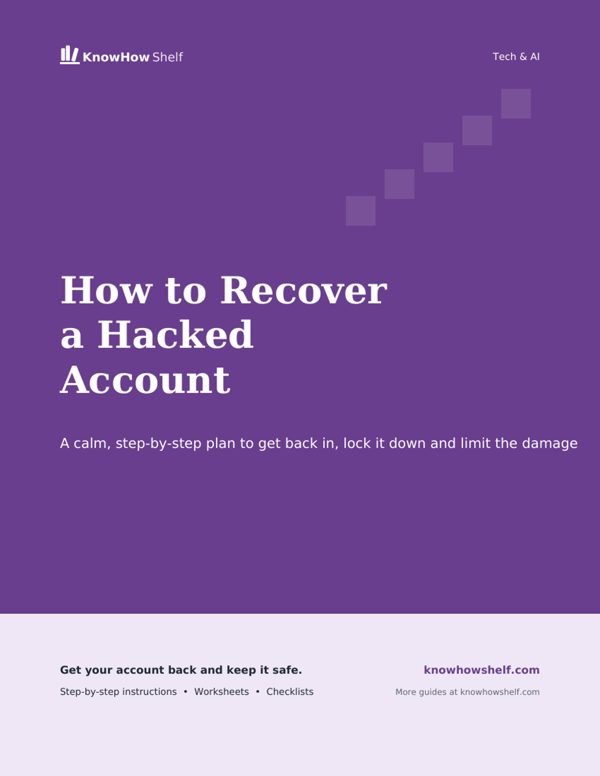
How to Recover a Hacked Email or Social Media Account PDF guide cover

$4.00 · 8-page PDF · instant download

Secure checkout by Stripe. Instant download after payment. All sales are final once the guide is downloaded.

Tech & AI

How to Recover a Hacked Email or Social Media Account

A calm, step-by-step plan to get back in, lock it down and limit the damage

What's inside the full guide

  1. Signs Your Account Has Been Compromised
  2. First Hour: Stop the Damage
  3. If You Are Locked Out: Use the Official Recovery Route
  4. Lock the Account Down
  5. Protect Your Other Accounts
  6. Warn Contacts and Report It
  7. Prevent It Happening Again
  8. Hacked Account Recovery Record (printable worksheet)

Free preview

Discovering that someone else has got into your email or social media account is stressful, and it is easy to panic or fall for a fake recovery offer. This guide is for anyone who thinks an account has been taken over, whether you can still sign in or have been locked out completely. It gives you a clear order of actions: secure your devices, use the official recovery route, lock the account down, warn your contacts and check for wider damage. General information, not professional advice.

Signs Your Account Has Been Compromised

Sometimes it is obvious, such as a password that suddenly stops working. Often the signs are quieter. Any of the following is a reason to act now rather than wait.

  • Your password no longer works, or the email address or phone number on the account has changed.
  • You receive security alerts about sign-ins, password changes or new devices that you did not make.
  • Friends say they have received odd messages, links or requests for money from you.
  • Posts, comments, follows or purchases appear that you did not make.
  • Emails appear in your Sent folder that you did not write, or emails you expected are missing.
  • New forwarding rules, filters or linked apps appear in your settings.
  • You receive two-factor codes or approval prompts you did not ask for.
Check the alert itself: Some scam emails pretend to be security alerts to trick you into a fake login page. Never click the link in an alert. Open the official app or type the website address yourself and check your security settings there.

First Hour: Stop the Damage

Work through these steps in order. Use a device you trust, ideally one that has up-to-date software and that you have not used to click any suspicious links recently.

  1. Stay calm and do not reply to the attacker If someone messages you claiming to hold your account and demanding payment, do not pay or negotiate. Payment rarely leads to the account being returned.
  2. Check your device for problems Make sure your phone or computer is updated. Run the built-in security scan, such as Microsoft Defender on Windows, and remove any unfamiliar apps or browser extensions.
  3. Try to sign in normally If your password still works, go straight to changing it, as described below.
  4. Change the password immediately Choose a new, long, unique password that you have never used anywhere else. A password manager can create and store one for you.
  5. Sign out of all other sessions Most services have an option such as sign out of all devices or a list of active sessions. Remove every session that is not you.
  6. Turn on two-factor authentication If it was not already on, switch it on now. If it was on, check that the phone number, authenticator app and backup methods are yours.

If the hacked account is your main email, treat it as the top priority. Whoever controls your email can reset passwords for many other accounts, so securing it first protects everything else.

Why device checks come first. If a hidden program on your device is recording what you type, changing your password on that device could simply hand the new password to the attacker. That is why the first step is to make sure the device you are using is clean and updated. If you have any doubt about a computer, use a different trusted device, such as an updated phone, for the password changes, and come back to the suspect computer afterwards. If a device keeps behaving strangely after scans and updates, a local repair shop or the manufacturer's support service can help, and backing up your files and resetting the device to factory settings is a reliable last resort.

Write it down as you go: Note the time of each step and anything unusual you see, such as an unfamiliar email address added to your account. These notes help with recovery forms, bank conversations and any report you make.

Get the rest: the full step-by-step guide plus a printable worksheet for $4.

More Tech & AI guides

How to Use an AI Chatbot Like ChatGPT as a Complete Beginner

$4

How to Spot and Avoid Phishing Scams by Email, Text and Phone

$4

How to Free Up Storage on a Full Phone

$4

How to Speed Up a Slow Computer Without Buying a New One

$4

How to Set Up a Password Manager and Stop Reusing Passwords

$4

How to Write Better Prompts to Get Useful Answers From AI

$4

How to Turn On Two-Factor Authentication for Your Key Accounts

$4

How to Fix Wi-Fi That Keeps Dropping or Running Slow

$4

How to Back Up Your Phone Photos So You Never Lose Them

$4

How to Learn Excel Basics in a Weekend

$4

How to Use AI to Write Emails, Letters and Cover Letters

$4

How to Make Your Phone Battery Last All Day

$4

How to Create a Simple Household Budget Spreadsheet

$4

How to Design Social Media Posts in Canva

$4

How to Protect Your Privacy on Facebook and Instagram

$4

How to Choose and Use Cloud Storage for Your Files

$4

How to Set Up a Smart Speaker and Get It Doing Useful Things

$4

How to Use VLOOKUP and XLOOKUP Without Getting Lost

$4

How to Know If a Website Is Safe Before You Buy

$4